How to Use Your Phone as Backup Internet for Your Router
To use your phone as backup internet for your router, plug it into a router with USB tethering, turn on tethering, and set the phone as the failover WAN.
On this page
You can use your phone as backup internet for your router by plugging it into the router’s USB port, turning on tethering, and setting the phone as the router’s backup (failover) connection. When your cable, fiber or DSL line drops, the router switches to the phone’s mobile data, and everything in the house stays on the same Wi-Fi network. It only works on routers that accept a phone as an internet source over USB, such as some ASUS Wi-Fi 6 models on supported firmware and TP-Link routers with Multi-WAN Backup, and your phone plan has to allow tethering.
This guide covers the setup and the data limits to plan for. It’s based on ASUS, TP-Link, Apple, Google and Netflix documentation; we haven’t tested specific phone and router pairs. If you’re deciding whether to buy a router for this, our best dual WAN router guide compares models with tethering support, and our eero Signal 4G vs. 5G guide covers eero’s dedicated cellular backup.
What you need
- A router that supports USB tethering as a WAN. Look for “USB tethering,” “mobile tethering,” “Dual WAN” or “Multi-WAN” in the manual or settings. A USB port alone isn’t enough: some routers use theirs only for storage or printers.
- A phone plan that allows tethering. Apple says Personal Hotspot “requires a wireless carrier that supports Personal Hotspot” and that “Additional fees may apply.” Google says, “Some mobile carriers limit or charge extra for tethering. We recommend checking with your carrier.”
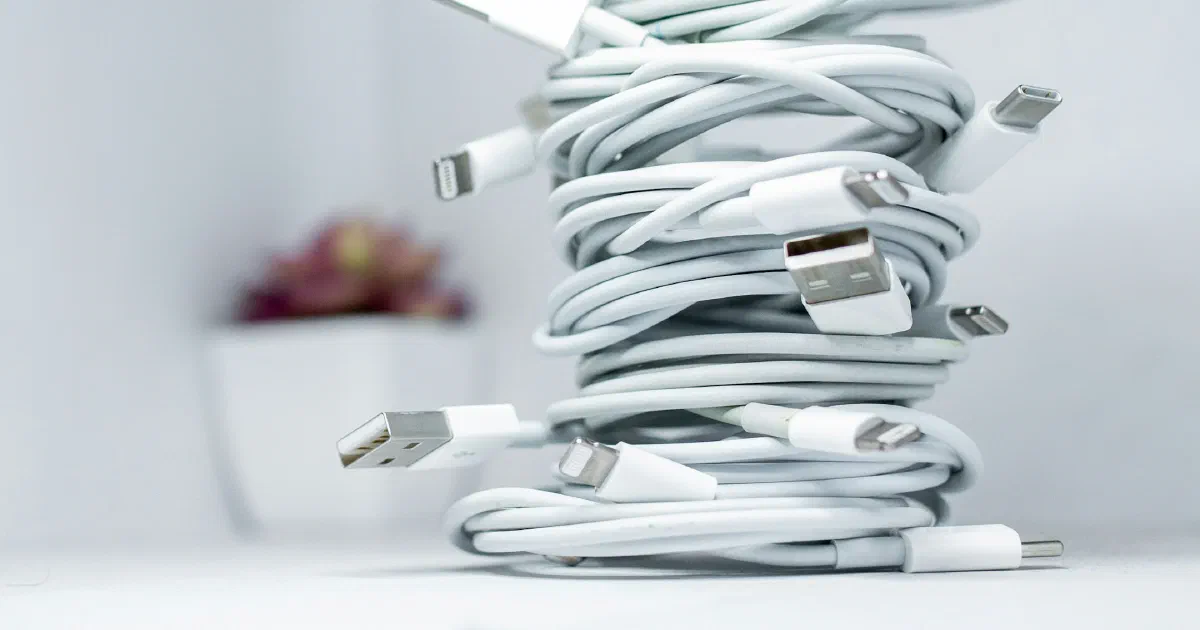
- A USB cable that fits both the phone and the router’s USB port and carries data, not just power. The phone’s own cable works if it fits the router’s port; many router USB ports are USB-A.
- Up-to-date router firmware. ASUS lists the supported firmware versions for this feature, and TP-Link warns that “older firmware may not support the Multi-WAN feature.”
Step 1: Check that your router supports it
ASUS. ASUS says the feature is available for “specific 802.11ax models” on firmware between 3.0.0.4.388.23000 and 3.0.0.4.388.29999, any version beyond 3.0.0.4.388.31900, or any version beyond 3.0.0.4.386.69019 (ASUS FAQ 1050074, last updated March 3, 2026). Check the firmware version in the router’s web interface or app and update it first.
TP-Link. TP-Link’s Multi-WAN Backup guide (last updated August 19, 2026) lists three backup types: Ethernet, a USB cellular modem, and “USB Tethering,” which uses a phone’s mobile data over USB. It doesn’t list which models support it, and it says the feature isn’t available unless the router is in Wireless Router mode, so it won’t work on a router set up as an access point.
Other brands. Search your model’s manual for “tethering.” If it isn’t there, the router most likely can’t do it. Our dual WAN router guide lists other models whose makers document tethering.
Step 2: Turn on tethering on the phone
Android. Google’s steps: connect the phone to the other device with a USB cable, swipe down from the top of the screen, touch and hold Hotspot, then turn on USB tethering. Menu names vary by phone maker, so look under network or hotspot settings if you don’t see it there.
iPhone. Turn on Personal Hotspot first: Apple’s path is Settings > Personal Hotspot (or Settings > Cellular > Personal Hotspot), then turn on Allow Others to Join. Plug the iPhone into the router’s USB port. If the phone asks whether to trust the device, tap Trust.
Step 3: Add the phone as the router’s backup connection
ASUS. ASUS’s guide for current firmware says that once tethering is on and the phone is plugged in, a hotspot icon appears when the backup WAN becomes available. ASUS’s older guide (FAQ 1045247) describes the manual route for Android: open the router’s web interface, go to Network Map, click the Android icon, turn USB mode on, select the phone and click Apply. ASUS says Dual WAN is then turned on automatically, and that “it might take some times to be configure the connection.”
TP-Link. Go to Advanced > Network > Internet > Multi-WAN, add USB tethering as a connection and set your main line as the primary. TP-Link says failover is the default: the router uses the primary connection and switches to the secondary if the primary fails, and “you can adjust connection priority.”
Step 4: Use failover, not load balancing
Both ASUS and TP-Link also offer load balancing, which sends traffic over both connections at once. For phone backup, that’s the wrong choice: it would spend mobile data every day, not only during outages. Keep the phone as a failover-only secondary connection.
Then test it. Unplug the cable from your modem or ONT for a minute and check that a device on your Wi-Fi can still load a web page. Reconnect it and confirm the router switches back to the main line.
Plan for data use
Phone data is usually the limiting factor, not speed. A few ways to stretch it:
- Know your hotspot allowance. Apple and Google both warn that carriers may limit or charge for tethering, so check your plan’s hotspot terms before you need them.
- Turn down video. Netflix’s help page lists data use per hour, per device, on a computer or browser: up to 0.3 GB on Low, up to 0.7 GB on Medium and, on High, up to 1 GB for standard definition, 3 GB for HD and 7 GB for 4K. During an outage, set streaming apps to a lower quality or pause big downloads and cloud backups.
- Keep the phone charged. Google’s tip is to “Plug in your devices while tethering.” The phone is already cabled to the router, so watch its battery level during a long outage rather than assuming the router’s USB port will keep it topped up.
- Turn it off when the line is back. Google recommends turning off tethering connections when you’re done.
When this isn’t the right backup
- Power outages. If your neighborhood loses power, your router does too. Phone tethering only helps if the router stays powered; see our guide to the best UPS for a router and modem.
- Routers without tethering support. Use the phone’s Wi-Fi hotspot directly on your laptop instead. It’s less convenient, because devices need to join a different network, but it needs nothing extra.
- Daily or long outages. If you rely on backup often, a dedicated cellular backup or a second wired line will spare your phone and its data plan.
Sources and verification
| Important claim | Source | Status |
|---|---|---|
| ASUS phone tethering: firmware versions, iPhone (Personal Hotspot, Trust) and Android steps, hotspot icon when backup WAN is available (specific 802.11ax models) | ASUS FAQ 1050074, March 3, 2026 | Verified |
| ASUS Network Map > USB mode steps; Dual WAN enabled automatically | ASUS FAQ 1045247, July 11, 2024 | Verified |
| TP-Link Multi-WAN Backup: USB tethering supported, menu path, failover default, Wireless Router mode required, older firmware may lack it | TP-Link FAQ 5249, August 19, 2026 | Qualified (UK page; no model list) |
| Personal Hotspot needs carrier support; additional fees may apply; menu path | Apple, May 7, 2026 | Verified |
| Android USB tethering steps; carriers may limit or charge; battery tips | Google Android Help | Verified |
| Netflix data use by quality setting | Netflix Help Center | Verified |
Frequently asked questions
Can any router use a phone as backup internet?
No. The router needs a USB port and firmware that accepts a phone as an internet source. ASUS and TP-Link both document it for some models. If your router's manual doesn't mention USB tethering, mobile tethering or a USB WAN, assume it can't, and use the phone's Wi-Fi hotspot directly on your devices instead.
Does the router switch to my phone automatically?
It can, if you set the phone as the secondary WAN in failover mode. TP-Link says its Multi-WAN Backup uses the primary connection and switches to the secondary if the primary fails. ASUS's 2024 guide says Dual WAN is turned on automatically when you enable USB mode for the phone. The phone still has to be plugged in with tethering turned on.
Will this work with an iPhone?
On supported ASUS routers, yes: ASUS's guide says to turn on Personal Hotspot, plug the iPhone into the router's USB port and tap Trust if prompted. TP-Link's Multi-WAN guide says USB tethering uses a phone's mobile data but doesn't say whether iPhones are supported, so check your model's manual.
Why not just use the phone's Wi-Fi hotspot?
You can, but then every device has to join a new network, and smart home devices, printers and wired devices like a desktop or TV box won't follow. Tethering through the router keeps your normal Wi-Fi name and password, so your devices stay on the same network.
Will this work in a power outage?
Only if the router has power. Phone tethering covers an internet outage, not a power cut. To keep the router running during a blackout, it needs a UPS or other backup power.
Sources
- [Wireless Router] Plug, Share & Surf: Turn your ASUS Router into a 4G/5G Hotspot instantly (FAQ 1050074), ASUS (Mar 3, 2026)
- [Wireless Router] How to set up a smartphone to share the network to the router (USB Tethering)? (FAQ 1045247), ASUS (Jul 11, 2024)
- How to Set Up Multi-WAN Backup on TP-Link Wi-Fi Router (FAQ 5249), TP-Link (Aug 19, 2026)
- How to set up a Personal Hotspot on your iPhone or iPad, Apple (May 7, 2026)
- Share a mobile connection by hotspot or tethering on Android, Google
- How to control how much data Netflix uses, Netflix