How to Use an Old Router as an Access Point
Use an old router as an access point by wiring it to your main router and switching on AP mode, or by turning off DHCP. Steps, settings and pitfalls.
On this page
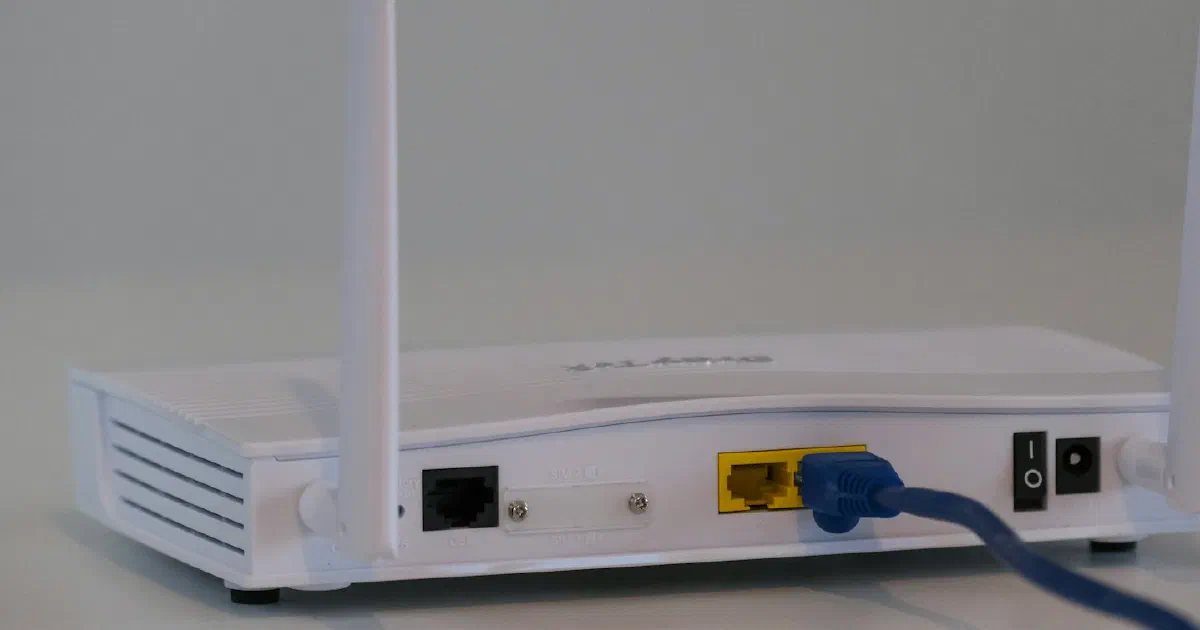
You can turn an old router into a Wi-Fi access point by connecting it to your main router with an Ethernet cable and switching it to access point (AP) mode. If it has no AP mode, you can get the same result by hand: give it a spare address on your main router’s network, turn off its DHCP server and plug the cable into one of its LAN ports. Either way, your main router stays in charge of addresses and the internet connection, and the old one just adds Wi-Fi where you need it. Before you start, check that the old router still gets security updates; if it doesn’t, it isn’t worth reusing.
If you’re still deciding between an access point, an extender and mesh, start with our access point vs. extender vs. mesh guide. This guide assumes you’ve picked the access point route and have a spare router to use. It’s based on the manufacturers’ own documentation, not our own testing.
Before you start: three checks
- Can you run a cable? AP mode needs a wired link back to your main router. ASUS describes its AP mode as a router using “a wired connection to the primary router or modem to extend network coverage,” and the TP-Link method below also uses Ethernet. ASUS notes Ethernet runs shouldn’t exceed 100 meters. If a cable is out of the question, coax with MoCA adapters can stand in for Ethernet.
- Is the old router still supported? In a May 7, 2025 public service announcement, the FBI warned of criminal “proxy services taking advantage of end of life routers that are susceptible to vulnerabilities,” and advised owners to “replace the device with an updated model if possible.” An access point sits on your home network just as a router does. Our guide on checking whether your router still gets security updates shows how to look this up, and if updates are available, install them before you change modes.
- Does the main router hand out addresses? It should. ASUS says the primary router or modem needs IP sharing (DHCP) turned on for AP mode to work. Most home routers and ISP gateways do this by default.
Method 1: use the built-in AP mode
This is the easier and safer option. Many routers from the big brands include it, though the menu name varies.
Netgear
Netgear’s knowledge base article on AP mode (updated July 7, 2025) gives these steps:
- Connect to the router’s network, go to routerlogin.net and sign in with the admin username and password.
- Open ADVANCED > Advanced Setup > Wireless AP. On Nighthawk Pro Gaming routers it’s Settings > Setup > Wireless AP, and some models call it “Router / AP / Bridge Mode.”
- Select AP Mode.
- Leave the IP setting on the default, “Get dynamically from existing router.” Netgear marks the fixed-IP option “not recommended” unless you have advanced networking experience.
- Click Apply. Netgear notes that your computer loses its connection to the router at this point; reconnect to carry on.
Netgear says to finish the router’s basic setup before you change the mode.
ASUS
ASUS’s AP mode guide (updated March 3, 2026) has you choose the mode during Quick Internet Setup:
- Open the router’s settings at its LAN IP or asusrouter.com and start Quick Internet Setup.
- Choose Advanced Settings, then Choose operation mode, then Access Point (AP) mode.
- Pick Automatic IP, set the Wi-Fi name and password, and create the router’s admin account.
- Connect an Ethernet cable from the AP router’s WAN or LAN port to a LAN port on your main router or modem.
ASUS says that in AP mode its firewall, IP sharing and NAT functions are disabled by default.
Other brands
Look for a setting called operation mode, working mode, AP mode or bridge/AP mode. If your router has one, the pattern is the same as above: pick AP mode, let it get its address automatically from the main router, then cable it to a LAN port on the main router.
Method 2: no AP mode? Set it up by hand
Older or basic routers sometimes have no AP mode. TP-Link documents a manual method for these (updated June 4, 2026). The same idea applies to most routers, though the menu names will differ:
- Find your main router’s address range. Log in to the main router and note its LAN IP (for example 192.168.2.1) and the range of addresses its DHCP server hands out.
- Give the old router a spare address. In the old router’s LAN settings, set its IP to an unused address on the same subnet that sits outside the main router’s DHCP range. TP-Link’s example uses 192.168.2.11 alongside a DHCP range of 192.168.2.100 to 192.168.2.199. Write the address down: it’s how you’ll reach the old router’s settings from now on.
- Set the Wi-Fi name and password you want the access point to broadcast.
- Turn off the old router’s DHCP server. Only one device on your network should hand out addresses.
- Reboot, then log back in at the new address to confirm the settings stuck.
- Connect a LAN port on the old router to a LAN port on the main router. We recommend leaving the old router’s WAN (internet) port empty, so it doesn’t try to act as a router again.
Steps 2 and 4 are the ones that matter. If the old router keeps an address the main router might hand to something else, or keeps its own DHCP server running, devices can end up with conflicting or wrong addresses and lose internet access.
Which Wi-Fi name should the access point use?
For most homes, the same network name (SSID), password and security type as the main router. Phones and laptops then treat both as one network and can move between them. TP-Link’s roaming guidance for its business access points says roaming will fail if the target access point’s “SSID differs in name or security method,” so match both, including the WPA2 or WPA3 setting. If the two routers don’t support the same security option, use the one both offer.
Two things to know about this setup:
- Your devices decide when to switch. TP-Link notes that “clients may refuse to roam as the signal to the connected AP is still strong.” Two separate routers don’t coordinate the hand-off the way a mesh system can, so a phone may cling to the farther one until the signal gets poor.
- A different name is a valid choice. If you’d rather pick the access point yourself, for a desk PC or TV that never moves, give it its own name.
It also helps to put the two on different channels where they overlap, so they aren’t competing for the same airtime. Our guide to changing your Wi-Fi channel covers how.
What stops working in AP mode
An access point only provides Wi-Fi and wired ports. Everything that depends on the router handling your internet connection moves to the main router. Netgear’s list of features grayed out in AP mode includes guest network, port forwarding and port triggering, remote management, UPnP, IPv6, traffic meter, parental controls, Netgear Armor, block sites and services, VPN service, access control and QoS.
In practice:
- Set up port forwarding, parental controls and QoS on the main router. Settings on the old router no longer apply.
- Don’t count on the old router’s guest network. On Netgear it’s disabled in AP mode. If you need guest Wi-Fi, use the main router’s.
- Firmware updates still matter. The old router is still a device on your network, so keep updating it if the maker offers updates.
How to log in to the old router afterward
Once it’s an access point, the old router no longer sits at its old address.
- AP mode with an automatic address: find the old router in your main router’s list of connected devices and use the address shown there. ASUS recommends its Device Discovery Utility to locate the router.
- Manual method: use the fixed address you set in step 2.
If you get locked out entirely, a factory reset puts the router back to its defaults, and you can start again.
If it doesn’t work
- Connected to the access point but no internet: check that DHCP is off on the old router (manual method) and that the cable runs to a LAN port on the main router. In the manual method, the old router’s WAN port should be empty.
- Devices get odd addresses (not in your main router’s range): the old router’s DHCP server is most likely still on.
- Some devices drop when you move around the house: match the network name and security type exactly, or give the access point its own name and connect to it on purpose.
- Still slow near the access point: the problem may not be Wi-Fi at all. Run a wired speed test at the main router, then compare it with a Wi-Fi test near the access point.
Sources and verification
| Important claim | Source | Status |
|---|---|---|
| Netgear AP mode steps, menu paths, default “Get dynamically from existing router,” fixed IP “not recommended,” finish basic setup first | Netgear KB 20927 | Verified (page updated July 7, 2025) |
| Features grayed out on Netgear routers in AP mode | Netgear KB 26765 | Verified (page updated July 7, 2025) |
| ASUS AP mode is a wired connection to the primary router; WAN or LAN port to main router’s LAN; Ethernet under 100 m; main router needs DHCP; firewall, IP sharing and NAT disabled by default; Device Discovery Utility | ASUS FAQ 1015009 | Verified (page updated March 3, 2026) |
| Manual method: LAN IP on same subnet outside DHCP range, disable DHCP, reboot, LAN-to-LAN cable (leaving the WAN port empty is our advice) | TP-Link FAQ 1384 | Verified (page updated June 4, 2026) |
| Roaming fails if SSID name or security method differs; clients may not roam while signal is still strong | TP-Link roaming troubleshooting | Qualified: written for TP-Link’s business access points; principle applies generally |
| FBI warning on end-of-life routers and advice to replace them | FBI IC3 PSA, May 7, 2025 | Verified |
Frequently asked questions
Can I use an old router as an access point without an Ethernet cable?
Not as an access point. The ASUS and TP-Link setups we cover here both connect the access point to the main router with an Ethernet cable. Some routers have a separate wireless repeater mode, but that works like an extender, not an access point. If you can't run a cable, look at MoCA adapters over coax, powerline adapters, or a mesh system designed for wireless links.
Which port do I use, WAN or LAN?
It depends on the method. ASUS says that in AP mode you can connect either the WAN or a LAN port of the AP router to a LAN port on the main router. In TP-Link's manual method for routers without AP mode, the cable goes into a LAN port on the old router.
Should the access point use the same Wi-Fi name and password?
Usually yes, if you want phones and laptops to switch between the two automatically. TP-Link's roaming guidance for its business access points says roaming fails if the network name or security method differs between access points. Devices still decide for themselves when to switch, so a phone may hang on to the weaker signal for a while.
How do I log in to the old router after switching to AP mode?
Its address changes, because your main router now assigns it. Look it up in your main router's list of connected devices, or use the maker's tool: ASUS recommends its Device Discovery Utility.
Will an access point make my internet faster?
No. It can improve Wi-Fi signal where the main router is weak, which can bring speeds in that area closer to what your plan delivers elsewhere, but it can't raise the speed your internet provider sells you.
Sources
- How do I change my NETGEAR router to AP mode?, Netgear Knowledge Base (Jul 7, 2025)
- Disabled Features on the Router when set to AP Mode, Netgear Knowledge Base (Jul 7, 2025)
- [Wireless Router] How to set up access point (AP) mode?, ASUS (Mar 3, 2026)
- How to configure the TP-Link wireless router as Access Point, TP-Link (Jun 4, 2026)
- Troubleshooting guide of roaming, TP-Link
- Alert Number I-050725-PSA: end-of-life routers, FBI Internet Crime Complaint Center (IC3) (May 7, 2025)